Showing posts with label graphics. Show all posts

Wednesday, May 20, 2015

3 Tools to Make Great Images

One challenge writers have is constantly creating content for social media. We have to develop a platform, and that means we need content. But the content has to be fresh, professional and most important of all easy to create. We're writers after all!

Over time, I've found a few tools that help me create visuals like the one above. I'm still learning, but I hope these tips will help you. I'd also love to hear what you use!

1) PicMonkey.com. Tricia Goyer told me about this website several years ago and I LOVE IT! It has truly been a life saver for me. I love that you don't need to register -- though if you pay a bit each month, you get rid of all the crazy ads. Still, if I have to have log-in information to remember one more place I might go crazy. Certainly, my brain will explode and that is simply bad for this homeschooling momma and writer. The website is fairly intuitive, but you'll want to play around for a bit.

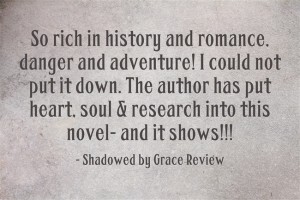
On PicMonkey.com, there are several options. You can upload a photo you've taken and add text, edit to change the look, add overlays, etc. Or you can design collages and Facebook headers. You can start with a blank slate and create a quote. I made this book review pull quote on PicMonkey.com. Those with better design skills could make it sing, but I liked it :-) If you're going to do something like this, start with an image that does not have the quote. Then it's super easy to open it, add the quote, and save it as a new image without recreating the basic image each time.

2) Quozio.com: This website is perfect when you want to create a quick quote. Once you're on the website, you enter your text, where it's from/who said it, and hit enter. After that it creates an image. You may choose from approximately 20 backdrops with preset fonts. This is not for those who like to create on their own. You have no design flexibility. However, it is GREAT for quick pull quote images. Download it to your desktop. Upload it to a blog, Facebook, Instagram, etc., and away you go. This verse is one I made on Quozio a couple years ago. It's also great for pull quotes from book reviews. 


3) Canva.com: This is a great resource if you want super professional, pre-made images. You can also create your own if you have the time and patience. Most of the images have an associate fee, but there are many free designs to choose from. The one at the top of this post is free -- and it took me less than five minutes to create the image. Here's another image I created at Canva.com:

BONUS: 4) DollarPhotoClub.com: When creating graphic images, using photos you've taken ensures you're in compliance with copyright laws. But if you haven't taken the right image that you need, the DollarPhotoClub.com is a great place to explore. For $1 per image, you can find great photos that make your verses, ideas, etc., come to life. If you would like an invitation to join, let me know in the comments. Here's an example of a photo I bought at DollarPhotoClub.com and edited on PicMonkey.com:


This final graphic is one I made on Canva.com, and then edited at PicMonkey.com

What tools do you use?
____________________


An award-winning author of twenty books, Cara is a lecturer on business and employment law to graduate students at Purdue University’s Krannert School of Management. Putman also practices law and is a second-generation homeschooling mom. She lives with her husband and four children in Indiana.


Monday, August 22, 2011

Design and Conquer: The One Sheet

I am an artist at heart. Graphics and design make me all giddy! When I first learned about one sheets, I was excited to play with this informative "art form".
The one sheet is a cheat sheet for you when you pitch, but it is also someone's only glimpse at your novel. These are so great to have at a conference.
Make it eye-catching, something an editor or agent is drawn too when they look through their stacks of one sheets. Use graphics that will stick in their mind when they think of your book. I'll give you my personal tips on creating a one sheet based purely on my graphic background... As I am unrepresented and unpublished, I will have to let you know how mine works at this year's conference! :)

Raison d'etre: Everything should have a reason to be... This is the anal architect in me. I cringe when I walk into a room and a picture is just “floating” on a wall when it could easily have been measured out and placed in a logical spot. Make sure you don't have graphics or text “floating” in space. Line text up with other text, center it with something, make sure your graphics or bio pic aren't just placed in a blank spot, but work with the rest of the sheet.

Tip: Photoshop has a grid that you can turn on while working on a design. This is a great way to “place” your elements.

Anchors Away: Use gradients, blocks of color, or "watermarked" graphics to anchor your sheet. The one sheet is just that, one overall composition to represent your novel. Be sure you don't just leave the eye “hanging” by keeping all your graphic work at the top or at the bottom. The graphics and text should flow to completion together.
Balance is everything. You don't have to have a ton of graphics, but if you have them, be sure they aren't sticking out amid a sea of text, that will only take away from your text.

Tip #2: How to put a picture behind the text: In a Microsoft program or Open Office, you can right click on an image and go to "order" or "alignment" and it should give you the option to send "to back" or send "behind the text". Be sure you change the opacity on the graphic so your text is still clear. In Photoshop or Gimp, you just make the graphic layer below the text layer.

Tip #3: DON'T RELY ON Photoshop and GIMP's text tools...make your one sheet background, then insert it into a Word file and use text boxes. The text in these programs (perhaps newest versions of Photoshop are different?) does not print out as crisp as Word.

Artistic License: It is easy to become overwhelmed with the many clipart images and photos you can choose from to represent your book. Don't settle. Only your mind's eye knows what you envision when you think of your story. Is it the vibrant colors of your humorous heroine's shoe collection? Or deep reds and velvety purples of kings and queens? Allow the graphics to support your novel in a way that the front cover of a book would. Be picky, take your time, and CREATE!

Tip: You can find a ton of free pictures using Flickr Be sure to check what each photo's copyright rules are...they will let you know how much you can manipulate it, and if you have to get the photographer's permission.

Go here to see examples and content tips on one sheets:
Rachelle Gardner's One Sheet Post
Dineen Miller One Sheets 

Are there any specific graphic-related questions you have as you create your one sheet?